
Getting Started: Your First Week with HomeWatcher
Welcome to HomeWatcher. This guide walks you through everything you need to do to go from a fresh account to a fully operational business — adding your first clients, running your first visit, and sending your first invoice. Each step is short. None of them are permanent — you can change anything later. If you ever get stuck, the Help menu inside the app links straight to support.
A quick note on the layout: the app has a left sidebar grouped into Operations (Clients, Properties, Schedules, Visits, Issues, Concierge), Finance (Overview, Ready to Bill, Invoices, Payments, QuickBooks), Tools (Communications, Checklists, Contracts), and Account (My Business, Team). We'll point you to the right place at each step.
Step 1: Set Up Your Business Profile (5 minutes)
Your business profile is what appears on reports, invoices, and emails. Do this first so everything you send looks professional from day one.
- Sign in at app.homewatchtools.com and open My Business from the sidebar.
- Click Edit to open the Edit Business Profile page.
- Enter your Business Name — this appears on every report and invoice.
- Upload your Logo (optional but strongly recommended — clients notice branded reports).
- Set your Business Timezone to match where your properties are. This keeps the timestamps on your reports correct.
- Add your Street Address, City, State, ZIP, Phone, and Website.
- Click Save.

Tip: Your email and account name are managed separately under Settings (the gear/profile menu), where you'll also find Password, E-Signature, Appearance, and Billing. If you work with a team, finish your business profile before inviting anyone so they see a polished workspace.
Step 2: Add Your First Client and Property (5 minutes)
Every visit, report, and invoice connects to a property owned by a client. Start here.
Add the client
- Open Clients in the sidebar and click Add Client.
- Fill in the Client or Household name, Primary Contact Name, Primary Contact Email, and Phone Number. (Phone is required.)
- Click Add Client & Property — this jumps straight to a property form with the client already selected, so you can add their home right away.

Add the property
- Enter the Street Address, City, State/Province, and Zip/Postal Code.
- (Optional) Assign an Area to group this home with nearby ones, set a Property Type (Residential, Condo, Commercial, Vacation Rental, or Other), and add the Approximate Sq Ft — these appear on reports.
- Fill in Access Notes: the gate code, alarm code, where the key is. This is what your tech reads before they arrive.
- Click Save Property.

One client can have multiple properties. A snowbird with a beach house and a mountain cabin is a single client with two properties — you manage them all from one record.
Step 3: Build a Checklist Template (10 minutes)
A checklist template is the blueprint for your inspection. You build it once; every visit you schedule uses it automatically. You'll find it under Checklists (in the Tools group).
Already have a checklist? Import it. If you're coming from another tool, a spreadsheet, or a paper binder, don't retype a thing. Open Checklists, click Import Checklist, and upload your file — a Word doc, spreadsheet, CSV, PDF, or even a photo of a printed list — or paste the text. Click Convert with AI, and in seconds your checklist is rebuilt as a template you can review, tweak, and save. See Import Your Checklist for the full walkthrough.
The fastest start: HomeWatcher includes built-in system templates you can use right away. Open one and look it over — if it fits how you work, use it as-is for now and customize later. System templates are read-only, so if you edit one the app offers to Save as a New Copy, keeping the original intact.
To build your own:
- Open Checklists and click Create New Template.
- Give it a name (e.g., "Standard Residential Visit").
- Click Add Category (Interior, Exterior), then Add Sub-Category inside each (Kitchen, Roof, Pool), then Add Item inside each sub-category ("Check under sink for leaks", "Inspect roof for visible damage").
- Set the response type for each item — Pass / Fail / N/A for condition checks, or Yes / No / N/A for simple confirmations.
- Drag items up or down to match how a tech physically walks the property.
- Click Save Changes.

Tip: Start simple. Five well-chosen categories with 6–8 items each beats a 100-item list a tech rushes through. You can always add more.
Step 4: Create Your First Schedule (5 minutes)
A schedule tells HomeWatcher how often to visit a property and generates the individual visit records automatically.
- Open Schedules and click Add New Schedule.
- Select the Property you just added and the Checklist Template you just built (both required).
- Set the Service Start Date and Service End Date for the season (for example, May 1 through October 31). Dates can't be in the past.
- Enter the Number of Visits you're contracted for (e.g., 26 for bi-weekly over six months). The visit dates auto-populate below, spread evenly across your range.
- Click Save — HomeWatcher creates all the visits.

Back on the Schedules list, you'll see your new schedule with a progress counter (0 / 26, for example). Your visits are ready.
Step 5: Set the Billing Rate on the Property (3 minutes)
Before you create any invoices, tell HomeWatcher what to charge so invoices are drafted with real numbers.
- Open the property you created (from Properties) and open its Billing page — titled Billing Settings.
- Under Visit Rate, set the Base rate (your per-visit fee).
- Under Additional Services, add any extra charges that should appear on every invoice for this property (e.g., "Pool check — $15").
- Choose the Billing model:
- Invoice each visit — auto-drafts an invoice each time a visit is completed.
- Monthly roll-up — work accumulates; you bill the period from Finance → Ready to Bill.
- Manual — you create invoices yourself whenever you want.
- Save.
See the Billing Models guide for a full explanation of each option.
Step 6: Install the App on Your Phone (2 minutes)
HomeWatcher runs in any browser, but it works best installed as an app on your phone — especially for field work, where you want offline access and a quick tap to start a visit.
- Open HomeWatcher in your phone's browser and sign in.
- Tap your browser's Share or Menu button and choose Add to Home Screen.
- It appears on your home screen like any other app and opens full screen.
Once installed, your upcoming visits are pre-loaded on the device so the checklist, photos, and sign-off all work even without a cell signal. Everything syncs the moment you reconnect.
For install steps on iPhone, Android, and desktop, see the home watch app page.
Step 7: Complete Your First Visit (10 minutes)
Now let's run a visit. You can do this on your own home as a practice run before your first real client visit.
- Open Visits. Your generated visits are listed here. Find one and tap Start Visit (a visit already underway shows Continue Visit).
- Check in — tap Check In & Start Visit to capture your GPS location and timestamp, or Skip Check-In & Start. Check-in is always optional; either way you move into the checklist.
- Work through the checklist. For each item, tap Pass, Fail, or N/A (or Yes / No / N/A). Marking an item Fail or No automatically flags it, and a flagged item needs a note before you can finish — the app points you to anything missing one. Add photos to document anything notable.
- When every item is marked, tap Review Visit.
- On the completion screen, add any Final Notes (optional) and your Provider Signature — the signature is required to complete the visit. Sign with your finger on a phone or your mouse on a computer.
- Tap Complete Visit.
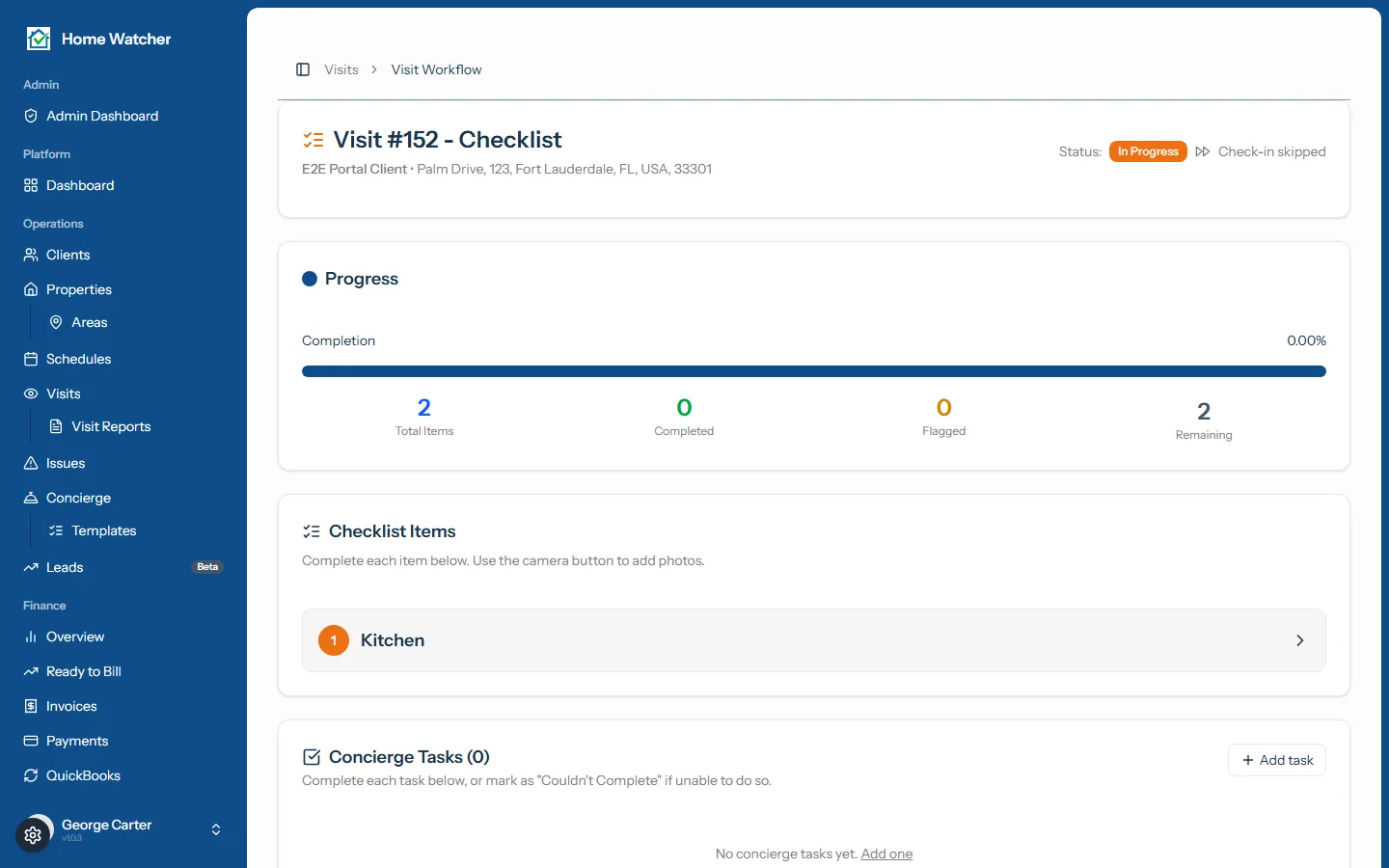
On completion, HomeWatcher snapshots a polished visit report and automatically turns any flagged items into tracked issues.
Step 8: Send the Report (1 minute)
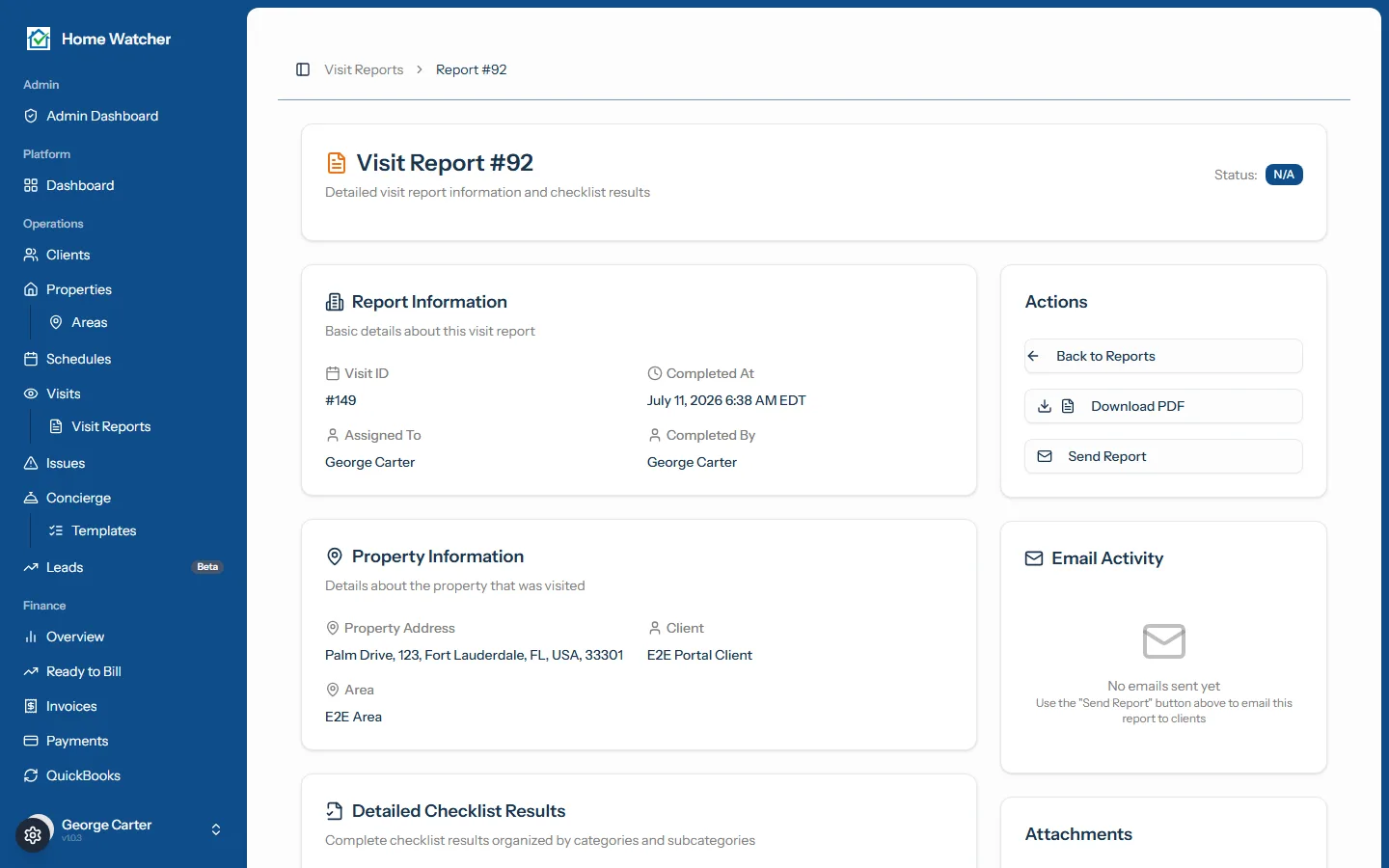
- Open Visit Reports and find the report you just created.
- Click Send Report.
- Choose which contacts to send to (primary, secondary, or both) and add an optional personal note.
- Click Send.
Your client receives an email with a link to their PDF report. You can see when it was delivered, opened, and clicked from the Email Activity section on the report page.
Step 9: Create and Send Your First Invoice (5 minutes)
If you set the property to Invoice each visit, a draft invoice was already created when you completed the visit — go to Invoices to find it, review it, and send it.
To create one yourself:
- Open Invoices and click New invoice.
- Select the Client and Property. The due date defaults to today plus your standard terms; you can change it on the invoice.
- Click Pull in visits to add the completed visit as a line item automatically, and Pull in services for any billable concierge work. (These buttons appear once you've picked a property.)
- Add any extra charges if needed, then click Create invoice. It saves as a draft with the next sequential number (INV-0001, INV-0002, …).
- Open the draft and click Send to client. Your client receives the invoice by email with a secure payment link.

If you've connected Stripe (open the Billing page and use Connect Stripe under "Accept Online Payments"), your client can pay the invoice by card in a couple of clicks. See Accepting Online Payments with Stripe for setup.
You're Up and Running
Here's what you've done:
- Set up your business profile
- Added a client and their property
- Built an inspection checklist
- Scheduled recurring visits
- Completed a visit
- Sent a report
- Sent an invoice
From here, scale this to every client and property in your roster. The pattern is always the same: client → property → checklist template → schedule → visit → report → invoice.
What to explore next
- Organizing Properties with Service Areas — group properties by neighborhood for easier scheduling
- Offering Concierge Services — track and bill add-on work like storm prep and vendor meetings
- Inviting Your Team and Setting Roles — bring your field techs on board
- Giving Homeowners a Client Portal — let clients view reports and pay invoices themselves
- Understanding Your Dashboard — your daily command center
Written by
Mike
Mike is the founder of HomeWatchTools.com, dedicated to building simple, powerful software for the home watch industry.
Keep Reading
Weather in HomeWatchTools
September 27, 2026
National Weather Service forecasts on your upcoming visits, the weather recorded on every completed one, and official warnings for your homes, all shown right where you're already looking.
Home Watch Marketing: A 90-Day Plan to Get Your First 20 Clients
September 17, 2026
A 90-day home watch marketing plan built on the five channels that actually produce clients: referral partners, Google Business Profile, a directory listing, neighborhood presence, and seasonal timing. Includes the free printable marketing kit.
Guide: The Initial Property Walkthrough
August 28, 2026
Before you take responsibility for a home, document what it already looks like. Learn how to run an initial walkthrough that builds the property's checklist, records pre-existing conditions with photos, and gives you a signed baseline you can point back to.