
How Billing Works: Per-Visit, Monthly, and Manual
HomeWatcher gives you full control over how each property gets billed. You can have invoices drafted automatically the moment a visit is completed, let work accumulate and bill the whole month at once, or create every invoice yourself by hand. You choose per-property, so some clients can be on monthly billing and others on per-visit — whatever matches the agreement you have with each homeowner.
Step 1: Set the Property's Billing Rate
Before billing can produce real numbers, the app needs to know what to charge. Open a property (from Properties) and open its Billing page — titled Billing Settings:
- Visit Rate → Base rate — your standard fee per visit. This is the main charge on every invoice for this property.
- Additional Services — recurring extras added to every invoice, such as "Pool check — $15" or "Mail collection — $10".
If a property has completed visits but no base rate set, it still shows up as unbilled — but with a $0 estimate (more on that below). Set the rate and those visits become billable.
Step 2: Choose a Billing Model
On the same Billing Settings page, pick a Billing model. The dropdown spells out what each one does:
Invoice each visit — auto-draft on completion, including concierge work
The most hands-off option. Every time a visit is marked complete, HomeWatcher automatically drafts an invoice for that property — or appends to the property's existing open draft — including:
- The property's base rate for the visit
- Any additional services configured on the property
- Any concierge work completed and marked billable during that visit
The invoice is created as a draft, so nothing reaches your client until you review it and click Send. Because it appends to the latest open draft, several visits can roll into one draft until you send it. Concierge work lands on these drafts automatically — you no longer have to remember to pull it in by hand.
Best for: clients you bill per visit, or properties where you want to review and send invoices as work happens.
Monthly roll-up — bill the period from Finance → Ready to Bill
Visits and concierge work accumulate through the month with no drafts created. When you're ready — usually month-end — you go to Finance → Ready to Bill and create one invoice per property covering everything outstanding for the period.
Best for: clients on a monthly retainer, or anyone you'd rather send one tidy invoice per month.
Want it to happen without the monthly click? Properties on this model can turn on Recurring Billing, a monthly or quarterly schedule that drafts (and can automatically send) the invoice for you.
Manual — create invoices yourself at any time
Nothing is drafted automatically. You build invoices from scratch at Invoices → New invoice, pulling in visits and services by hand. Full flexibility, full control, more work.
Best for: special arrangements, one-off invoices, or properties that don't fit the standard patterns.
Company default: the dropdown also offers a Company default option, so you can leave a property unset and have it follow your business-wide default (shown right in the option label). New properties start on the company default.
Using Ready to Bill (Monthly Properties)
For monthly properties — and any time you want to clear a backlog — Finance → Ready to Bill is your command center. The page is titled "Ready to bill."
It lists every property with completed work that hasn't been invoiced yet. Each row shows the property (with its billing-model badge and the date of the oldest unbilled work), a combined Work column (for example, "2 visits · 1 svc"), and an Estimated total.
To create invoices:
- Open Finance → Ready to Bill.
- Review each property's row. If a row shows $0 and a "No visit rate set" warning, its checkbox is disabled — you can't bill it until you add a base rate (there's a link straight to the property's billing page).
- Tick the properties you want to bill, or use the select-all checkbox.
- Click the create button. With nothing selected it reads Create draft invoices; once you select properties it becomes Draft N invoices ($total) so you can see exactly what you're about to generate.
- One draft is created per property, covering everything outstanding through today. Go to Invoices, review the drafts, and send them.
Keeping Track of Unbilled Work
You'll always know what's waiting to be billed:
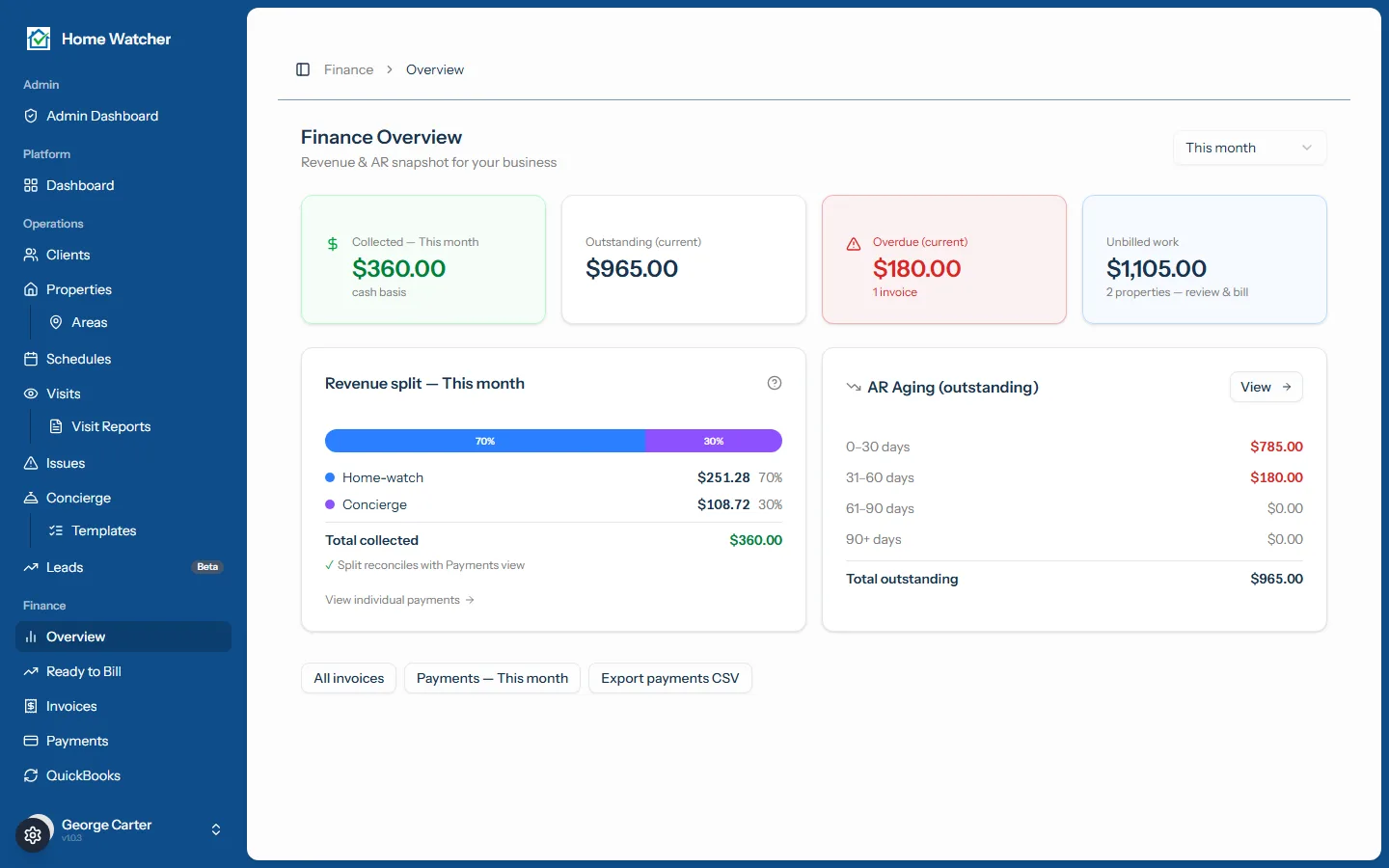
- Dashboard → Attention Strip — an "Unbilled work" chip shows the total dollar value and links straight to Ready to Bill. No chip means everything's invoiced.
- Finance → Overview — the same "Unbilled work" tile sits beside your collected, outstanding, and overdue numbers.
Frequently Asked Questions
How does this relate to the old auto-invoice checkbox? The billing model (per-visit, monthly, manual) replaces the older single auto-invoice toggle. "Invoice each visit" behaves like the old auto-invoice; "Monthly" and "Manual" don't auto-draft. Existing properties were migrated to preserve their previous behavior, so nothing changed unless you chose to update it.
Does creating a draft invoice send it to my client? No. Auto-drafted and Ready-to-Bill invoices are created as drafts. They go to your client only when you open the draft and click Send to client.
Can the same visit end up on two invoices? No. Once a visit or concierge task is included on an invoice it's treated as billed and won't reappear in Ready to Bill or be added to another draft. (Concierge work is stamped as invoiced; visits are matched by the invoice line item that references them.) There's no way to accidentally double-bill in the normal flow.
Why is a property showing $0 in Ready to Bill? It has completed, unbilled visits but no base rate set, so it can't be drafted yet. Its row appears with a "No visit rate set" warning and a disabled checkbox. Open the property's Billing Settings, add a rate, and it becomes selectable.
What if I change a property's billing model partway through a season? The change applies going forward. Work already on a draft isn't affected; anything not yet on an invoice follows the new model from the moment you save.
Where do I actually send the invoices? After drafting from Ready to Bill, go to Invoices, open each draft, review the lines, and click Send to client. See the Invoicing & Getting Paid guide for the full invoice workflow.
Written by
Mike
Mike is the founder of HomeWatchTools.com, dedicated to building simple, powerful software for the home watch industry.
Keep Reading
Weather in HomeWatchTools
September 27, 2026
National Weather Service forecasts on your upcoming visits, the weather recorded on every completed one, and official warnings for your homes, all shown right where you're already looking.
Home Watch Marketing: A 90-Day Plan to Get Your First 20 Clients
September 17, 2026
A 90-day home watch marketing plan built on the five channels that actually produce clients: referral partners, Google Business Profile, a directory listing, neighborhood presence, and seasonal timing. Includes the free printable marketing kit.
Guide: The Initial Property Walkthrough
August 28, 2026
Before you take responsibility for a home, document what it already looks like. Learn how to run an initial walkthrough that builds the property's checklist, records pre-existing conditions with photos, and gives you a signed baseline you can point back to.