
Using HomeWatcher Offline and on Your Phone
Home watch happens in basements, in gated communities with bad reception, and in waterfront homes where the cell signal disappears at the door. HomeWatcher is built for that reality. It installs to your phone like an app, and it keeps working when the signal does not, so your techs never lose a visit because they stepped into a dead zone.
This works because HomeWatcher is a Progressive Web App, which means you can add it to your home screen straight from your phone's browser, with no app store required. Once installed, it launches full screen like any other app, and it quietly keeps your upcoming visits and everything they need stored right on the device.
How to install it on your phone
- Open HomeWatcher in your phone's browser and sign in.
- Use your browser's menu to choose Add to Home Screen.
- Launch it from the new icon. It opens full screen, with handy shortcuts to today's visits and your dashboard.
That is the whole setup. From then on it behaves like a native app, and it is ready to work whether or not you have a connection.
Working a visit with no signal
Before a tech heads out, the app loads their upcoming visits onto the device while there is still a connection, including the property details, the checklist, and prior results. Out in the field, even with no bars, your tech can:
- Open their visit and start it
- Check in (or skip the check-in)
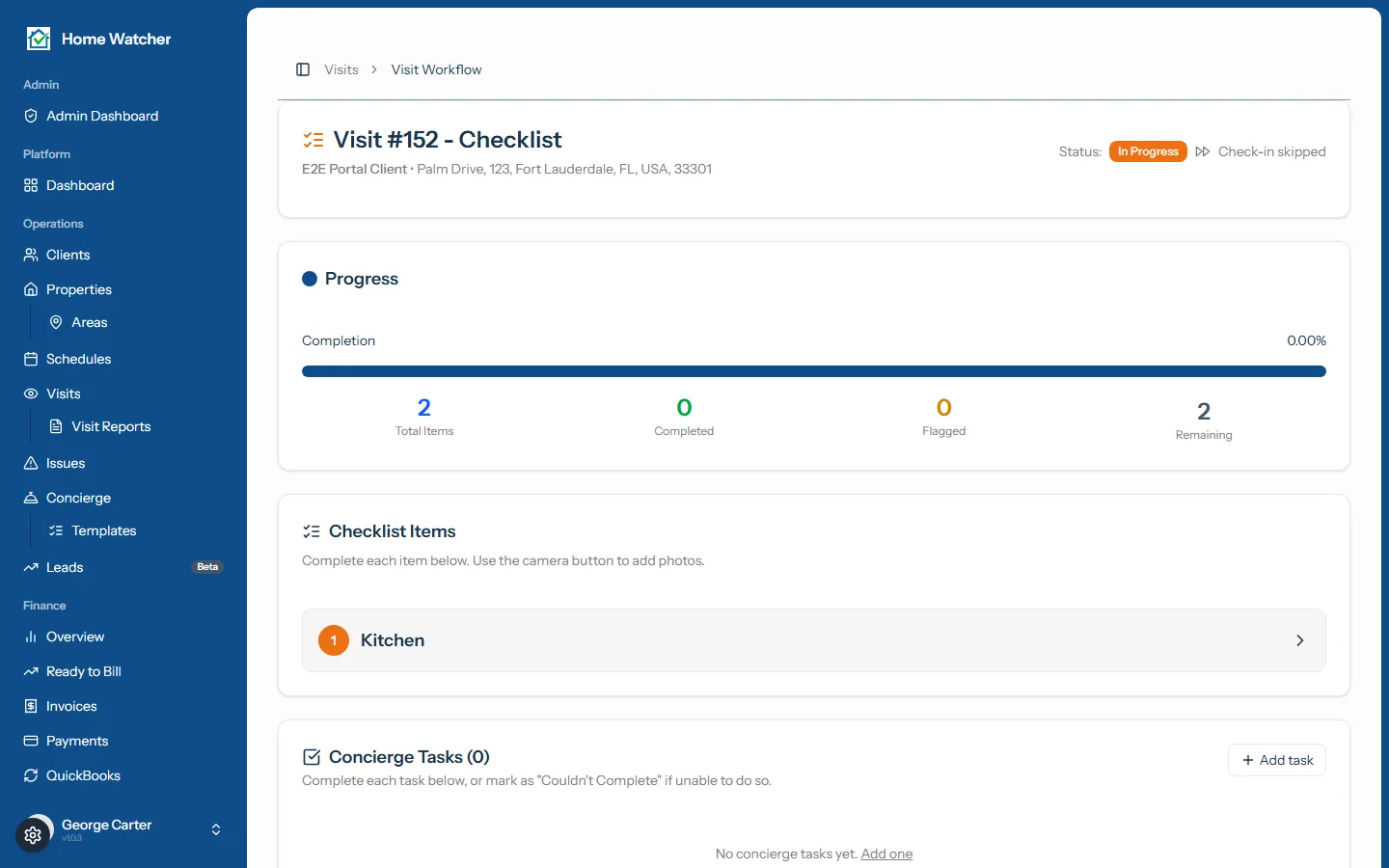
- Work through the full checklist item by item
- Capture photos as proof of service
- Write notes and complete the report
Everything they do is saved safely on the phone. The photos are held on the device too, so nobody has to wait for a signal to document an issue.
Syncing when you are back online
The moment the phone regains a connection, HomeWatcher sends everything up on its own. Completed steps, notes, and photos all upload in the background, and the finished report is reconciled automatically. Your tech does not have to remember to press a sync button or worry about doing it twice; the app is built to send each piece of work exactly once and to handle reconnection cleanly.
If a tech taps into a section that was not loaded for offline use, such as a part of the app outside their cached visits, they see a calm "this page needs a connection" screen rather than a confusing blank page, with a quick way back to their visits and a reload button for when they are online again.
What this means for your business
No lost work, no re-keying a visit back at the office, and no "I couldn't get the report done because there was no signal." Your techs complete the job where they stand, and the office sees it the instant their phone reconnects. It is one of the most practical reasons crews trust HomeWatcher in the field.
What comes next
To get your crew set up, see our guide to inviting your team and setting roles. You can also fine-tune your own account settings, see the home watch app page for install steps on every device, explore everything on the features page, or get started and install HomeWatcher on your phone today.
Written by
Mike
Mike is the founder of HomeWatchTools.com, dedicated to building simple, powerful software for the home watch industry.
Keep Reading
AI Home Watch Report Summaries Clients Actually Read
October 13, 2026
What goes on a one-page home watch report summary, how AI drafts it from your notes, what the AI never decides, and what homeowners see in the PDF, portal and texted link.
Don't Give Up: How Long It Really Takes to Get a Home Watch Business Off the Ground
October 13, 2026
Quiet early months are normal in home watch, and an uncertain economy can make them feel longer. A realistic first-year timeline, why the hard months pay off, and how to tell you're on track before your first client.
AI Report Summaries and Report Layouts
October 13, 2026
Put a one-page executive summary at the front of every report. Choose a layout, read and edit the AI-drafted summary, and pick the photos your clients see first.