
Guide: Turn Every Visit Into a Branded, Trackable Report
Updated: October 13, 2026
Turn Every Visit Into a Branded, Trackable Report
Every completed visit is proof that you showed up and did the work. HomeWatcher turns that work into a polished, branded report automatically, so you can hand your clients something that looks professional and inspires confidence, without lifting a finger to assemble it.
This guide walks you through viewing a report, downloading it as a PDF, emailing it to your homeowners, and tracking exactly what happens after you hit send.
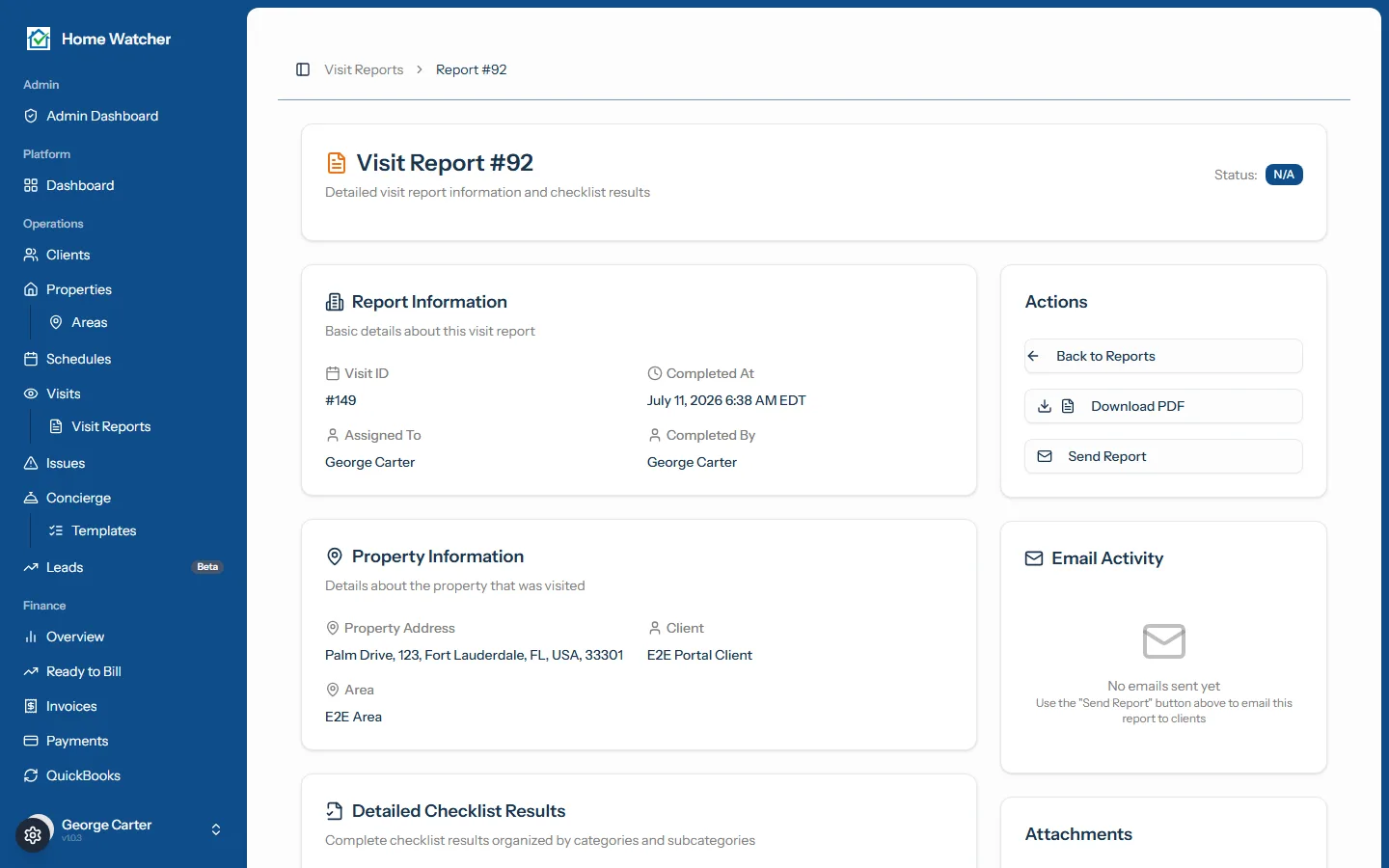
What a Visit Report Includes
A report is created the moment a tech finishes a visit. It captures everything that happened during that walkthrough in one organized, easy-to-read document:
- In the Summary + Details layout, a one-page summary up front: the overall status, flagged findings, a key photo and a short paragraph drafted by AI from your notes
- Your checklist results, organized by category and item, each with a clear Pass, Fail, or N/A badge
- Photos attached to each item, viewable as a thumbnail gallery
- Any concierge or ad-hoc tasks that were completed, along with notes and fees
- A captured signature and final notes
- Completion details, including who completed it, when, and at which property
Flagged items are clearly marked in red, so anything that needs attention stands out at a glance.
The One-Page Summary (Summary + Details)
Set Settings > Communications > Report layout to Summary + Details to put a one-page executive summary at the front of your reports. The headline status and the flagged findings come straight from your checklist. A few seconds after you complete the visit, AI drafts a short summary paragraph and up to four recommended follow-ups from your notes. It does not look at photos. Open the report to read it, and use Edit summary to change anything before you send. See the setup guide for AI report summaries.

Step 1: Open the Report
Open Visit Reports from the navigation to see all of your reports, then click into any one of them. The detail page header shows the report number and a status badge so you always know where things stand.
The Report Information and Property Information cards give you the key details at a glance: the completion time in the correct timezone, who it was assigned to, who completed it, and the property and client it belongs to.
Step 2: Review the Photos and Checklist
Scroll to the Detailed Checklist Results card to see the full walkthrough. Every item shows its result, type, notes, and a strip of photo thumbnails. Click any thumbnail to open the full image in a new tab.
If concierge tasks were performed, you will see them listed in their own section with completion status, fees, and any task photos.
Step 3: Download the PDF
In the Actions card on the right, click Download PDF. HomeWatcher renders a fully branded document, with your business logo and every photo embedded directly into the file, so it travels cleanly as a single self-contained PDF. Save it, print it, or attach it anywhere you like.
Step 4: Email It to Your Homeowners
Click Send Report to deliver the report straight to your client's inbox.

HomeWatcher automatically pulls in the client's contacts, so you can pick the primary contact, a secondary contact, or both. Add an optional personal note, then send. Each recipient receives their own message with a secure link to download the PDF, no account or login required on their end.
Step 5: Track Delivery in Real Time
This is where HomeWatcher does something most tools simply cannot. Once you send a report, the Email Activity card shows you the live delivery status for every recipient.

You will see each message move through its lifecycle: Sent, then Delivered, then Opened, then Clicked. If something goes wrong, you will see that too, with clear states like Bounced or Failed to Send.
That means you are never guessing whether a homeowner actually received their report. When a client 2,000 miles away says they never got it, you can see for yourself that it was delivered and opened, which puts an end to the back-and-forth and protects your reputation.
Step 6: Or Text It to Your Client
Some homeowners read texts long before they open email. Click Text Report, just under Send Report on the report (or the speech-bubble button next to the envelope on the Visit Reports list).
A small panel shows the text, ready to go: "Hi Jane, your visit is complete. View the report:" followed by a link and your business name.
- On a phone or Mac, tap Open Messages. Your own texting app opens with the client's number and the message filled in. Check it, change the wording if you like, and press Send.
- On a Windows computer, click Copy message and paste it into whatever you text from.
The text comes from your own number, so your client knows who it is and can reply straight to you. There is no texting service to sign up for and nothing extra to pay.
Mobile numbers only. HomeWatcher fills in the client's number only when it is marked as a mobile number, so a text never gets addressed to a landline by mistake. If it isn't marked yet, the panel tells you, and one tap on This is a mobile number saves it on the client and fills it in. You can also tick Mobile number (can receive texts) on the client's profile.
What your client sees. The link opens the full report in their phone's browser, with photos, checklist results and notes, plus a Download PDF button and your contact details. No login is needed. Each link is a long random code that only opens that one report.
Turning a link off. Every texted report shows a Texts card with who texted it and when, and whether the link is on. Tap Turn off and anyone who has the link sees "This link is no longer available." To turn off every link for one client, use Turn off all on the client's page. When you mark a client inactive, you can turn off their links in the same step.
Why It Matters
A visit report is your customer-facing proof of service. It shows your homeowners exactly what you checked, what you found, and that their property is in good hands. Pair that with delivery tracking and you have both a professional deliverable and the receipts to back it up.
Ready to see it in your own account? Explore the full feature set on our features page, or jump straight in at https://app.homewatchtools.com and complete a visit to watch your first report come to life.
Written by
Mike
Mike is the founder of HomeWatchTools.com, dedicated to building simple, powerful software for the home watch industry.
Keep Reading
AI Home Watch Report Summaries Clients Actually Read
October 13, 2026
What goes on a one-page home watch report summary, how AI drafts it from your notes, what the AI never decides, and what homeowners see in the PDF, portal and texted link.
Don't Give Up: How Long It Really Takes to Get a Home Watch Business Off the Ground
October 13, 2026
Quiet early months are normal in home watch, and an uncertain economy can make them feel longer. A realistic first-year timeline, why the hard months pay off, and how to tell you're on track before your first client.
AI Report Summaries and Report Layouts
October 13, 2026
Put a one-page executive summary at the front of every report. Choose a layout, read and edit the AI-drafted summary, and pick the photos your clients see first.