
Your Finance Dashboard
Invoices tell you about one client at a time. The Finance dashboard rolls them all up so you can answer the questions that actually run your business: how much cash came in this month, who still owes you, and where your revenue is coming from. Here's how to read it.
The Overview
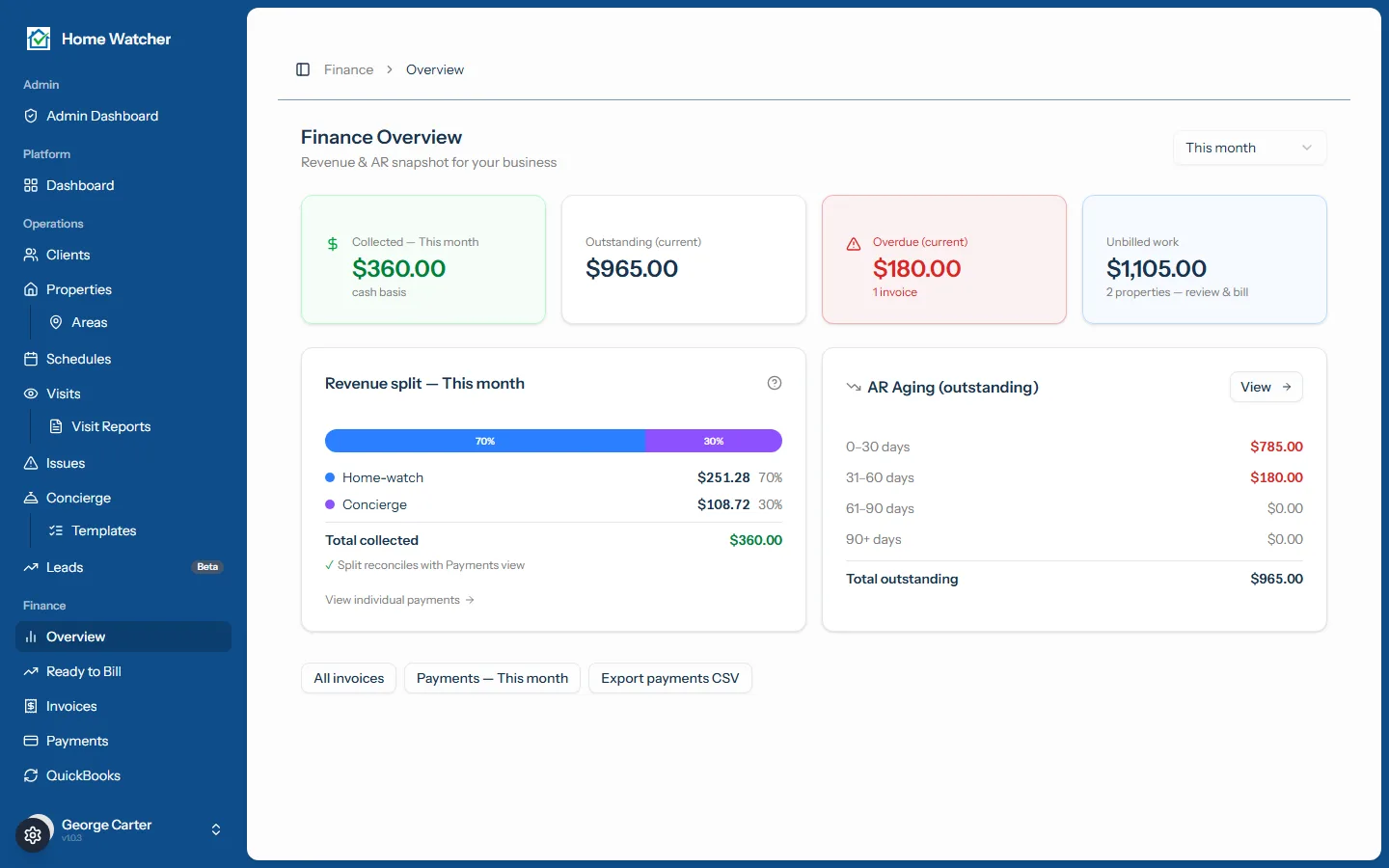
Open Finance to land on the Overview. It opens on This month, and you can switch the range with the period selector: last month, this quarter, this year, or all time.
At the top you'll see three key numbers:
- Collected: the money you actually received in the selected period. This is cash-basis, so it counts payments as they come in, not when invoices were sent.
- Outstanding: the total balance of every sent and partially paid invoice that hasn't been fully paid yet.
- Overdue: the portion of that which is past its due date. It turns red when there's anything to chase.
Where your revenue comes from
The Revenue split card breaks your collected total into Home-watch, Concierge, and Other (manual charges), each with a dollar amount and a percentage. If you're growing the concierge side of your business, this is the card that shows it paying off. A short reconciliation note confirms the split adds up to your collected figure, so you can trust the numbers.
AR aging
The AR Aging card buckets everything you're owed by how late it is (0–30, 31–60, 61–90, and 90+ days past due), with a total at the bottom. It's the fastest way to spot which invoices need a follow-up nudge.
The Payments ledger
Click through to Payments for the line-by-line record of every payment you've received.
- The Collected figure at the top reflects the period and shows how many payments are included.
- Filter by period and by client to zero in on what you need.
- Each row shows the date, client, property, the invoice it belongs to, the payment method (card, check, cash, bank transfer, or other), a reference, your notes, the amount, and whether it paid the invoice in full or in part.

Export for your accountant
When it's time to hand things off to a bookkeeper, you don't have to copy anything by hand:
- Export payments CSV from the Overview or the Payments screen. It honors your current period and client filter, with columns for the payment reference, date, client, invoice, property, totals, amount received, method, and notes.
- Export invoices CSV from the Invoices list. It honors your invoice filters and includes invoice number, dates, client, property, totals, and status.
Both downloads name themselves by date range, so they're easy to file.
A quick note on what the dashboard does and doesn't do: it's cash-basis reporting (money received and money owed) rather than a full profit-and-loss with expenses. The Collected and revenue-split figures follow the period you pick, while Outstanding, Overdue, and Aging always reflect your current snapshot.
That's everything you need to keep a finger on your cash flow. See the rest of what HomeWatcher does on the features page, review pricing, or sign in at app.homewatchtools.com.
Written by
Mike
Mike is the founder of HomeWatchTools.com, dedicated to building simple, powerful software for the home watch industry.
Keep Reading
AI Home Watch Report Summaries Clients Actually Read
October 13, 2026
What goes on a one-page home watch report summary, how AI drafts it from your notes, what the AI never decides, and what homeowners see in the PDF, portal and texted link.
Don't Give Up: How Long It Really Takes to Get a Home Watch Business Off the Ground
October 13, 2026
Quiet early months are normal in home watch, and an uncertain economy can make them feel longer. A realistic first-year timeline, why the hard months pay off, and how to tell you're on track before your first client.
AI Report Summaries and Report Layouts
October 13, 2026
Put a one-page executive summary at the front of every report. Choose a layout, read and edit the AI-drafted summary, and pick the photos your clients see first.